
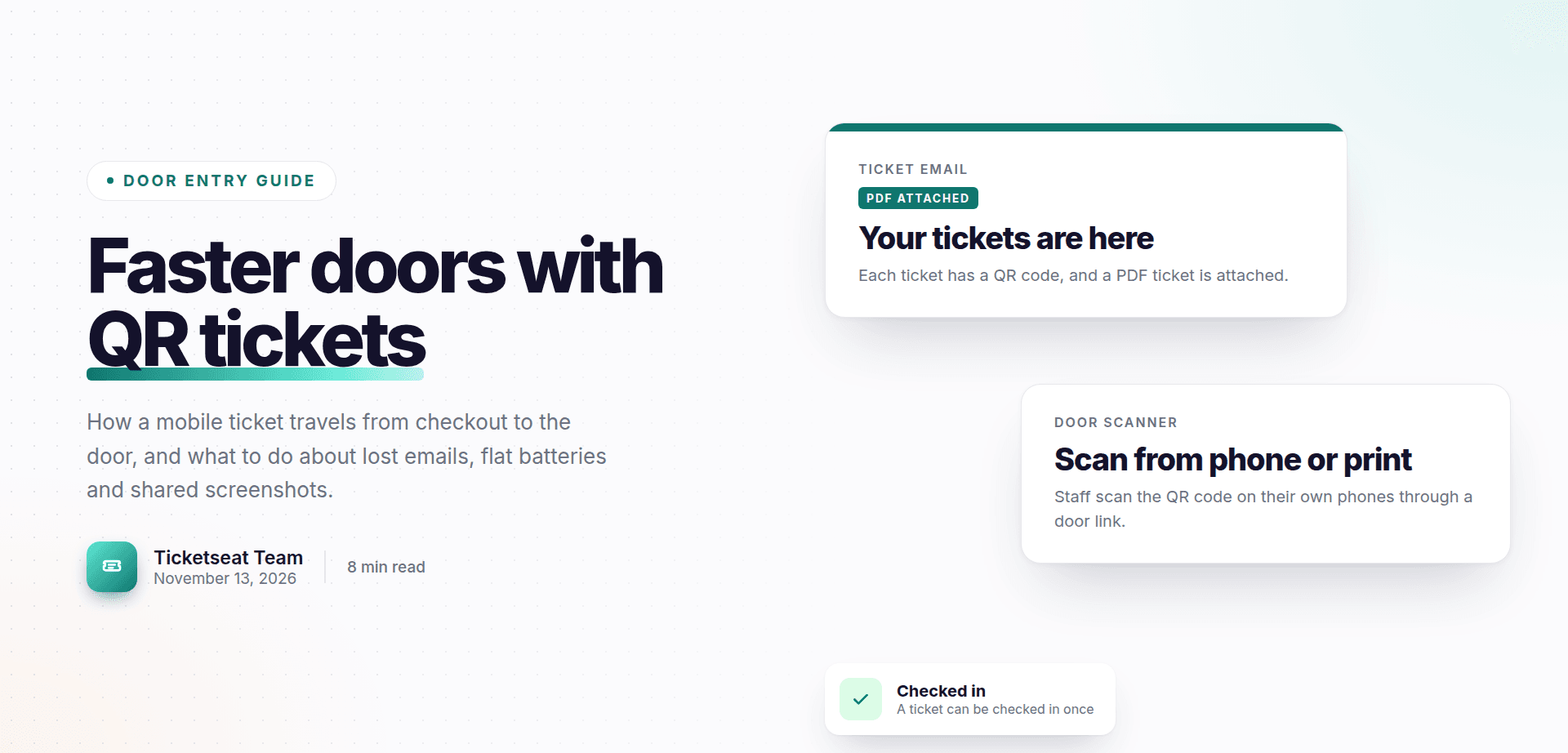
If you still run your door from a clipboard or a box of printed stubs, you already know the problems. Names are misspelt. Stubs get lost in the post. Someone swears they paid but isn't on the list. Mobile tickets for events fix most of this, and they are simpler than they sound.
This guide walks through the whole life of a mobile ticket in plain English: how it is sent, what the buyer receives, how it is checked at the door and what to do when things go wrong. That covers lost emails, flat phone batteries, shared screenshots and festivals that run over several days.
What mobile tickets for events actually are
A mobile ticket is a ticket sent to the buyer by email that carries a unique QR code. The QR code replaces the printed stub. At the door, someone scans the code and the system confirms the ticket is real and hasn't been used.
It helps to compare it with the alternatives:
| Method | How entry is checked | Common problems |
|---|---|---|
| Paper tickets | Staff tear the stub | Printing, posting, lost tickets, easy to copy |
| Email confirmation without a code | Staff read a name or order number | Slow, easy to fake, hard to tell if already used |
| Clipboard guest list | Staff find a name on paper | Slow queues, misspellings, no record of who arrived |
| QR code tickets | Staff scan the code | Needs a phone or printout, which most guests have |
The key difference is the unique code. Each one belongs to one ticket, and once it has been scanned, the system knows.
That's why digital tickets for small events have become normal. A comedy club with sixty seats, a school putting on its summer musical and a village festival all face the same door problems as a big arena, just with fewer staff. Paperless event tickets mean nothing to print or post, and a clear answer to "has this person already come in?"
The journey of a QR code ticket, from checkout to the door
Here is what happens to a single ticket, step by step.
1. The buyer pays on the event page. They choose their tickets, enter their details and pay.
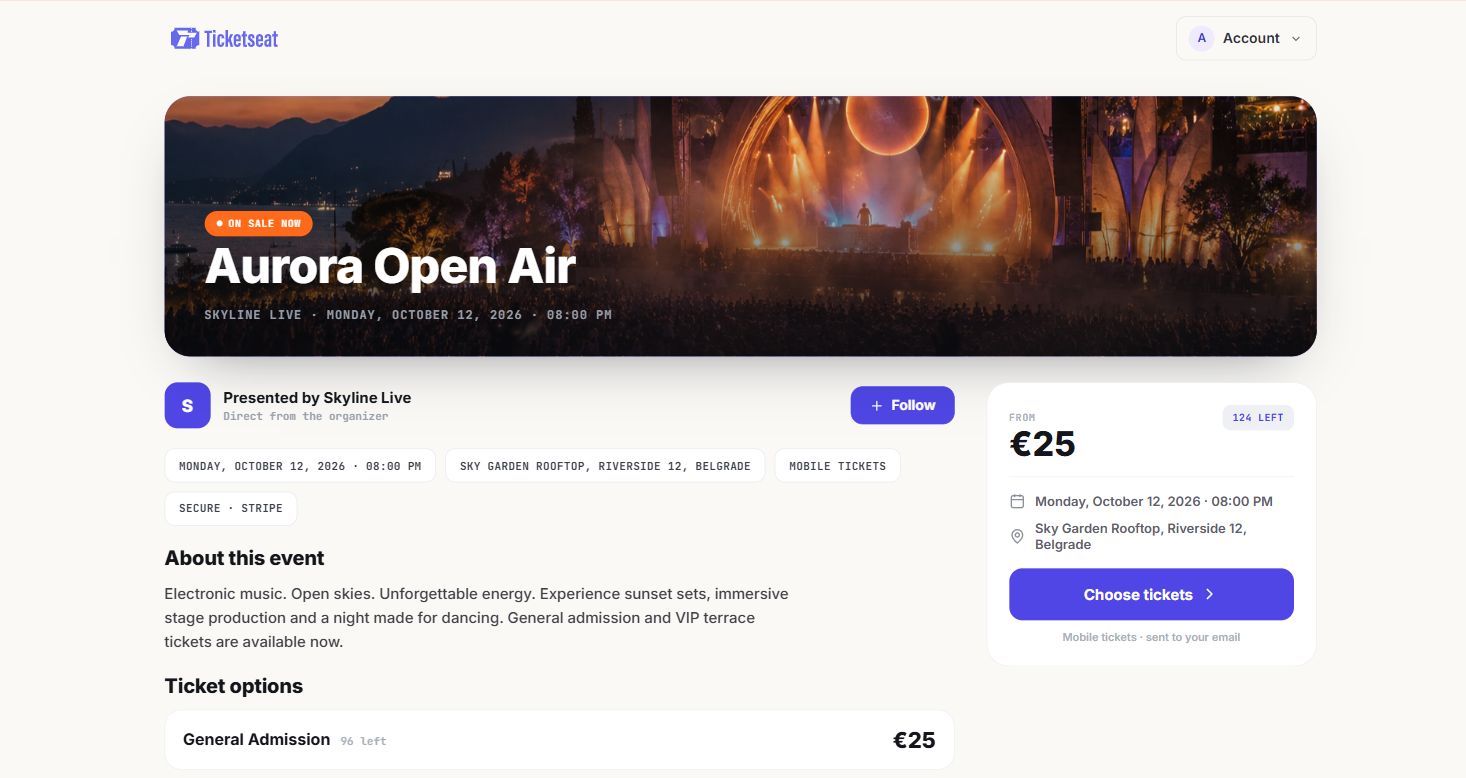
2. The tickets arrive by email. In Ticketseat, each ticket in the order has its own QR code, and a PDF ticket is attached to the email. A buyer who bought four tickets for a family gets four separate codes.
3. The buyer brings the ticket on the night. They can show the QR code on their phone, or print the PDF and bring the paper. Both work.
4. Door staff scan it. The scan confirms the ticket is valid and marks it as checked in. That ticket can't be used again.
That is the full journey. The buyer doesn't need to download anything, and you don't need to post anything.
How to send event tickets by email that buyers can find on the night
The weak point of e-tickets with QR codes isn't the code. It's the email. Most problems at the door come down to a buyer who can't find their ticket.
Why ticket emails go missing
- Spam and promotions folders. Some email providers file ticket emails away from the main inbox.
- The wrong address. A typo at checkout, or a work address the buyer rarely checks.
- Searching in a queue. The buyer bought the ticket six weeks ago and is now scrolling through hundreds of emails while forty people wait behind them.
What to tell buyers, and when
You can head off most of this with a few short messages.
- On the event page: a line such as "Your tickets will be emailed to you. Please double check your email address at checkout."
- In a reminder a few days before: "Find your ticket email now and save the PDF to your phone. Search for the event name if it isn't in your inbox. Check your spam folder too."
- On the day: a short note on social media or your mailing list repeating the same advice.
If you send reminder emails already, this fits in easily. Keep it short and practical.
Why the PDF matters
The attached PDF is the buyer's backup. Many venues have weak mobile signal, especially basements, old theatres and fields. A buyer who relies on opening an email at the door may find it won't load. A buyer who saved the PDF to their phone, or printed it, has the ticket ready regardless of signal.
Tell buyers this plainly. "Save the PDF before you leave home" is the single most useful sentence you can put in a reminder.
Phone screen or printed PDF: supporting every kind of guest
Not every guest wants a ticket on their phone. Older audiences, school parents buying for a whole family and some regular theatregoers prefer paper. Print at home tickets suit them well, and they shouldn't feel like second-class guests.
With PDF tickets for events, both options are covered. The QR code on a printout scans the same way as the one on a phone screen.
A few simple tips to share with buyers and door staff:
- Turn the screen brightness up. A dim screen is the most common reason a phone scan is slow.
- Keep printouts flat and clean. A crumpled or folded code across the middle may need a second try.
- One QR code per person. If a parent bought four tickets, they need four codes ready, either on the phone or on paper.
- Have the code ready before reaching the front. A sign at the start of the queue saying "Tickets ready, please" works well.
For more ways to keep the line moving, see these event check-in tips for cutting queues on show night.
When a phone dies
It happens most at festivals and late shows. If a guest's phone is flat and they have no printout, you need a fallback. Decide in advance what proof you will accept, such as photo ID matching the name on the order, and who on your team is allowed to make that call. Keep that person away from the main scanning line so the queue doesn't stall.
Why a QR code ticket can only be used once
This is the part that makes QR code tickets more secure than paper or a guest list.
In Ticketseat, a ticket can be checked in once. If a buyer forwards a screenshot of their code to a friend, or prints two copies, only the first scan checks someone in. The second copy won't get a second person through the door.
Handling a duplicate politely
When a code has already been used, the person in front of you is often not a fraudster. Common innocent reasons include:
- A family member already went in using the same ticket on another phone.
- The buyer sold or gave the ticket away and then forgot.
- Someone bought a "ticket" from a stranger online without knowing it was a copy.
Brief your door staff to stay calm and move the guest to one side. Ask who bought the ticket and whether anyone else in their group has already entered. Often it's sorted in a minute. If it isn't, have one named person deal with it rather than the scanner.
For a deeper look at shared screenshots, resale and fake tickets, read the guide on how to prevent ticket fraud and scalping at your events.
Mobile tickets for multi-day events and festivals
Festivals, conferences and weekend events raise an obvious question: if a ticket can only be used once, how does a three-day pass work?
In Ticketseat, day passes can be checked in once per event day. The same QR code works on Friday, again on Saturday and again on Sunday. But it can't be used twice on the same day, so a guest can't pass their code back over the fence to a friend.
Tell buyers to keep the email
This is the main thing buyers get wrong. They scan in on day one, delete the email or lose the printout, and arrive on day two with nothing. Make it clear in your messages:
- "Your ticket is valid for every day of the event. Keep the email or PDF until the event ends."
- Repeat it on any wristband instructions, signs or reminder emails.
For setting up day and weekend passes, see this guide on selling multi-day event tickets.
What you need on the door: just your team's phones
Many organisers assume mobile tickets for events mean renting scanners. With Ticketseat, scanning runs on your door staff's own phones through a door link. You send the link to your team, they open it on their phones, and they are ready to scan. There's no hardware to buy or hire.
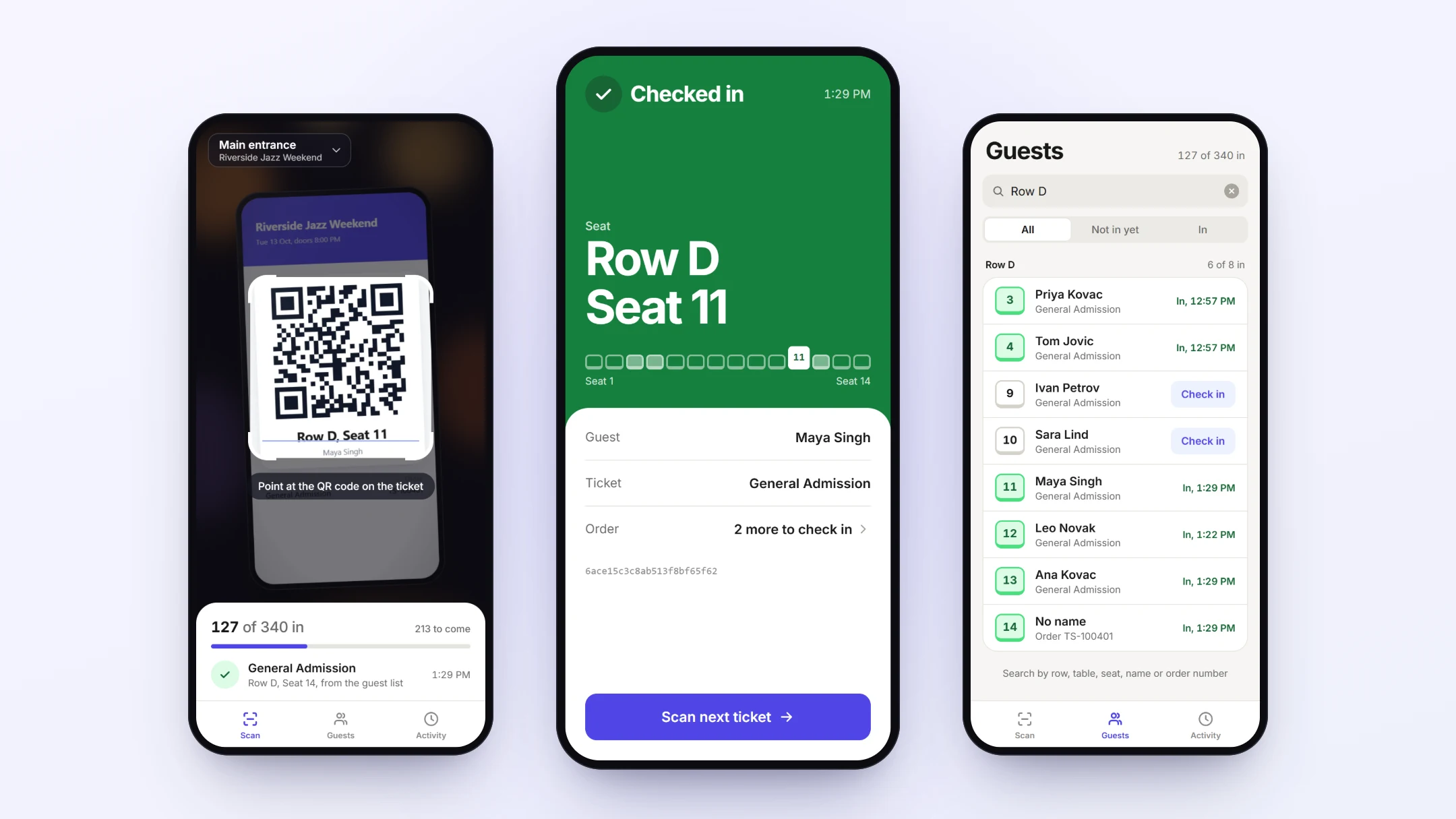
A few things are worth sorting before the doors open:
- Charge the phones. Bring a power bank or two for long events.
- Test a scan. Buy or issue a test ticket and scan it during setup so everyone has done it once.
- Check the signal at the door itself. Not just in the car park. If it's weak, find out whether there's venue wifi your team can use.
- Agree who handles problems. One person for lost emails, flat phones and already-used codes.
You can read more about the Ticketseat door scanner and door links.
How Ticketseat helps
Ticketseat covers the full journey described above. After paying, buyers get their tickets by email, with a QR code for each ticket and a PDF ticket attached, so they can use their phone or a printout. At the door, staff scan the QR code from either. Each ticket can be checked in once, and day passes can be checked in once per event day, which suits festivals and multi-day events. Scanning runs on your team's own phones through a door link, so there's nothing to rent. Ticketseat is free to start, and you can see the details on the pricing page.
Start free at ticketseat.io and send your first mobile tickets in time for your next event.
Frequently asked questions
Do buyers need an app to use mobile tickets?
No. With Ticketseat, buyers receive their tickets by email, and each ticket has a QR code with a PDF ticket attached. At the door they show the QR code on their phone or hand over a printed PDF. Nothing needs to be installed.
What happens if someone screenshots a QR code ticket and shares it?
A ticket can only be checked in once. The first person to have the code scanned gets in. A copy of the same code will not check in a second person. Brief your door team on how to handle this calmly, because the person holding the copy may not know it was already used.
What if a guest can't find their ticket email at the door?
Ask them to search their inbox and spam folder for the event name or the organiser's name, and check which email address they used at checkout. Before the event, remind buyers to find the email and save the attached PDF ticket. Moving them to one side while they search keeps the queue moving.
Can guests print their e-tickets instead of showing them on a phone?
Yes. Each ticket email from Ticketseat includes a PDF ticket, and door staff can scan the QR code from a printout as well as from a phone screen. A flat, clean printout scans well.
Do mobile tickets work for multi-day events?
Yes. With Ticketseat, a day pass can be checked in once per event day, so the same QR code works on each day of the event. Tell buyers to keep their ticket email or PDF for the whole event, not just the first day.
Ticketseat Team
Sharing insights about event ticketing, platform updates, and industry best practices.
Related Articles
View all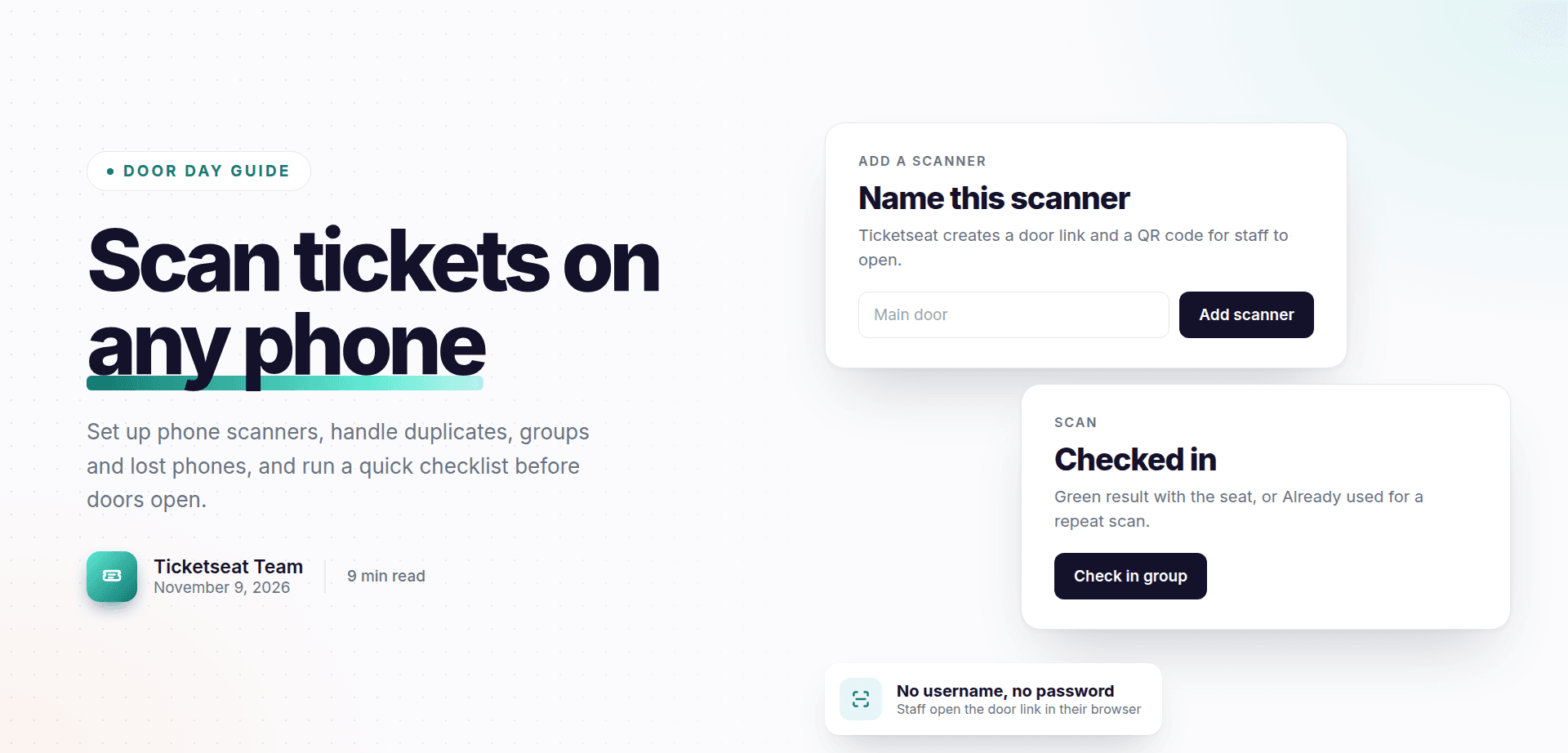
Ticket Scanner App: How to Scan Tickets on Staff Phones
A practical guide to scanning QR code tickets on staff phones, from setting up scanners to handling duplicate tickets, missing QR codes, groups and lost phones, with a checklist to run before doors open.
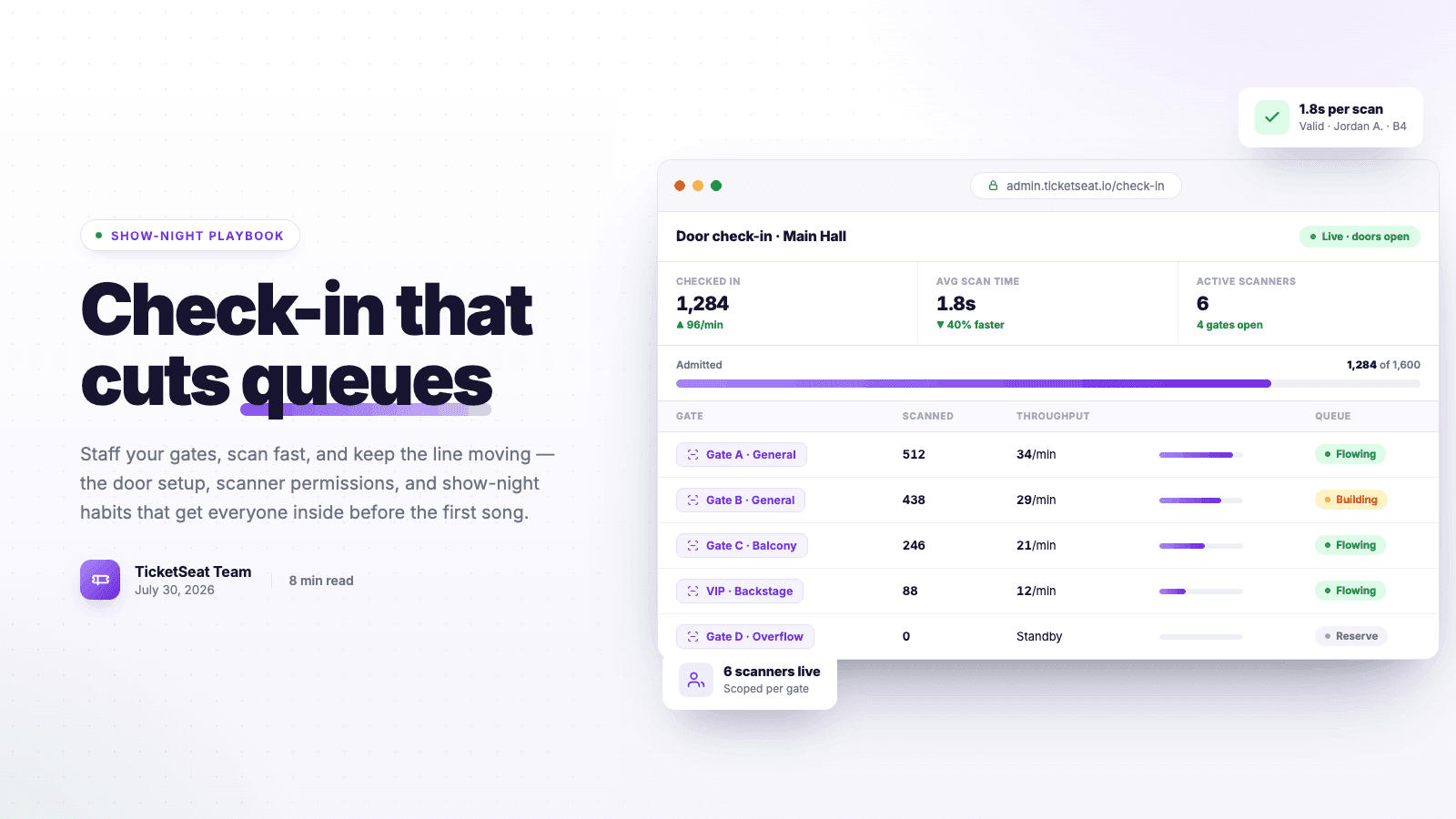
Event Check-In Best Practices: Cut Queues on Show Night
Master your event check-in process to eliminate long queues and elevate the attendee experience. Learn top strategies for entry management, empowering door staff, and boosting your check-in speed.
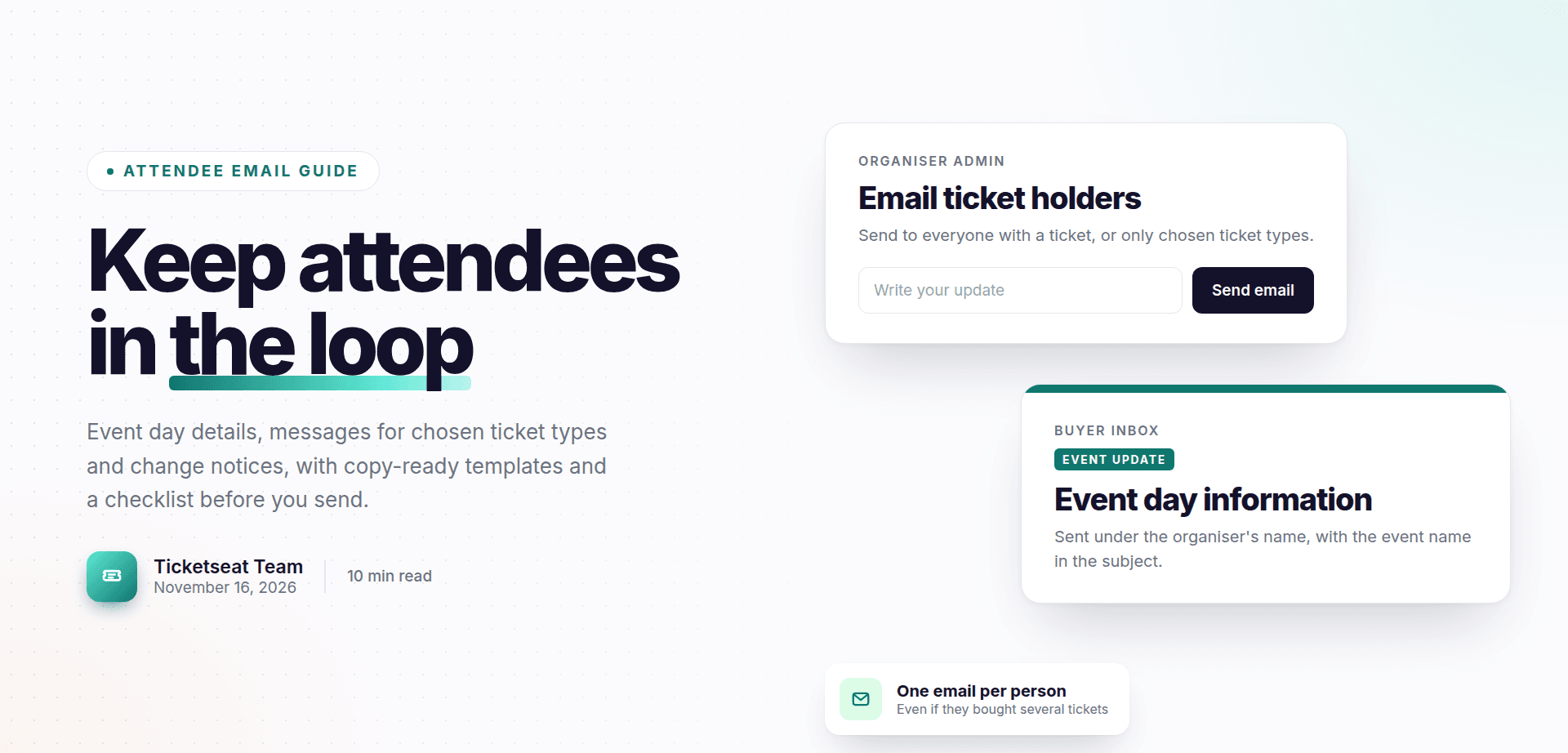
How to Email Event Attendees: Updates, Reminders and Templates
A practical guide to the emails you send after the sale: event day information, messages to specific ticket types, and change or cancellation notices, with copy-ready templates and a pre-send checklist.
Compare Ticketseat
See how Ticketseat stacks up against other ticketing platforms.
Ready to Transform Your Event Ticketing?
Create your event page, sell tickets with seat maps, and scan guests in at the door. Free to start.