
Doors open in ten minutes. The queue already reaches the car park, and your volunteers are holding a printed list and a pen. A ticket scanner app turns that scene into something calmer: staff point a phone at a QR code, see a clear answer and wave the guest through.
This guide explains how QR code ticket scanning works on ordinary staff phones, from setup to the last guest of the night. It covers what to look for, how to handle duplicate tickets and guests without a QR code, how to check in groups, and how to keep control of who can scan. It ends with a checklist to run before every show.
Do you actually need a ticket scanner app?
A ticket scanner does three jobs in a second or two:
- It reads the QR code on the guest's ticket.
- It checks that the ticket is real and belongs to your event.
- It marks the ticket as used, so the same code cannot get in twice.
The third job is the one paper lists cannot do well. A volunteer ticking names on a clipboard works for a 40-seat poetry night. It falls apart at a 300-capacity gig when three people arrive at once, two of them share a surname and one is holding a screenshot their friend sent them.
Glancing at a QR code on someone's phone and nodding them in is worse. It proves nothing. A screenshot looks identical to a real ticket, and nobody at the door can tell whether that code has already been used.
Downloadable apps versus browser scanners
There are two broad types of scanner:
- Downloadable apps. Staff install an app from the app store, sign in with an account and scan from there.
- Browser scanners. Staff open a web link on their phone and the scanner runs in the browser, using the phone's camera.
For small teams, the browser option is usually easier. Volunteers at a school fair or a community theatre often do not want to install anything, and some will have phones with no space left. If scanning starts from a link, the only setup is "open this and allow the camera".
What to look for in a ticket scanner for door staff
Whatever tool you choose, judge it against how a real door works on a busy night. Here is a short list worth checking before you commit.
| What to check | Why it matters at the door |
|---|---|
| Works on staff's own phones | No hardware to buy, borrow or charge separately |
| No shared usernames and passwords | Volunteers forget them, and shared logins spread further than you intend |
| Clear results on screen | Staff need to read the answer at a glance in a dark foyer |
| Searchable guest list | For guests whose QR code will not scan |
| Group check-in | Couples and families should not have to show six phones |
| Control over devices | You need to remove a phone that goes missing |
| Access that ends after the event | Old links should not keep working for months |
If you are looking for a free ticket scanner app, check whether scanning is included with your ticketing platform before paying for a separate tool. A scanner that is built into the same system you sell through will always know which tickets are valid, without exporting lists.
How to set up scanning on staff phones, step by step
Setup varies between platforms, but the steps below show how it works with Ticketseat door links. The same principles apply elsewhere: one named scanner per door, a simple way to get it onto staff phones, and a test before doors open.
Step 1: Add a scanner and give it a name
In your event, add a scanner by typing a name, for example "Main door". That is all the setup the scanner itself needs.
Step 2: Get the door link and QR code
Ticketseat creates a door link and a QR code for that scanner. You can send the link to staff by message or email, or show the QR code on your screen and let them point their camera at it.
Step 3: Staff open it and start scanning
Door staff open the link on their own phone and start scanning in the browser. There is no username and no password to type. More detail on how this works is on the door scanner and door links page.
Tip: one scanner per entrance
Create a separate scanner for each entrance: "Main door", "Side door", "VIP", "Stage door". Clear names make it obvious which phone belongs where, and they help later if you need to sign out one device without disturbing the others.
What staff see when they scan a ticket
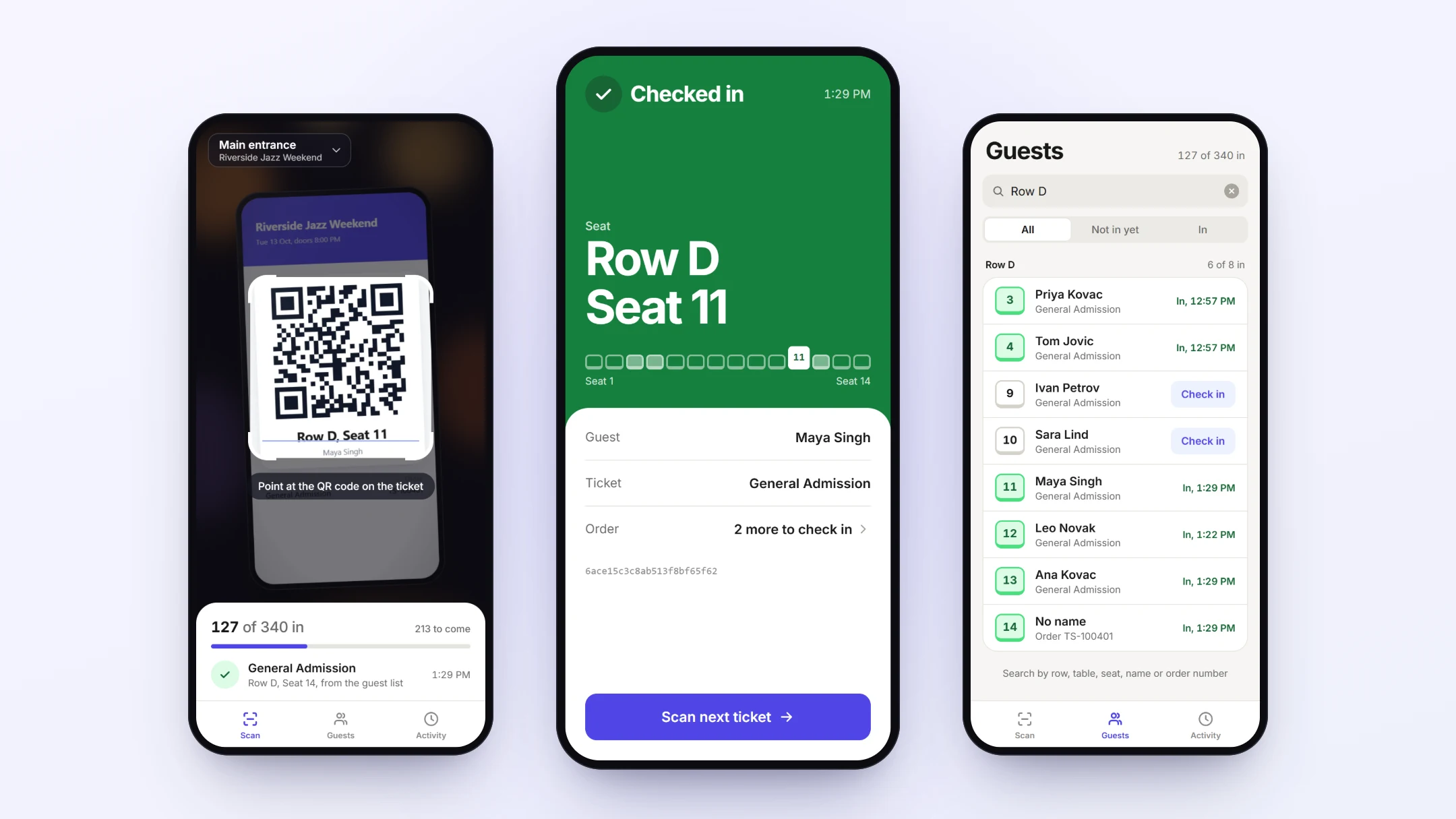
The best scanners give one clear answer that a tired volunteer can read without squinting. In Ticketseat there are two main results.
Green "Checked in", with the seat
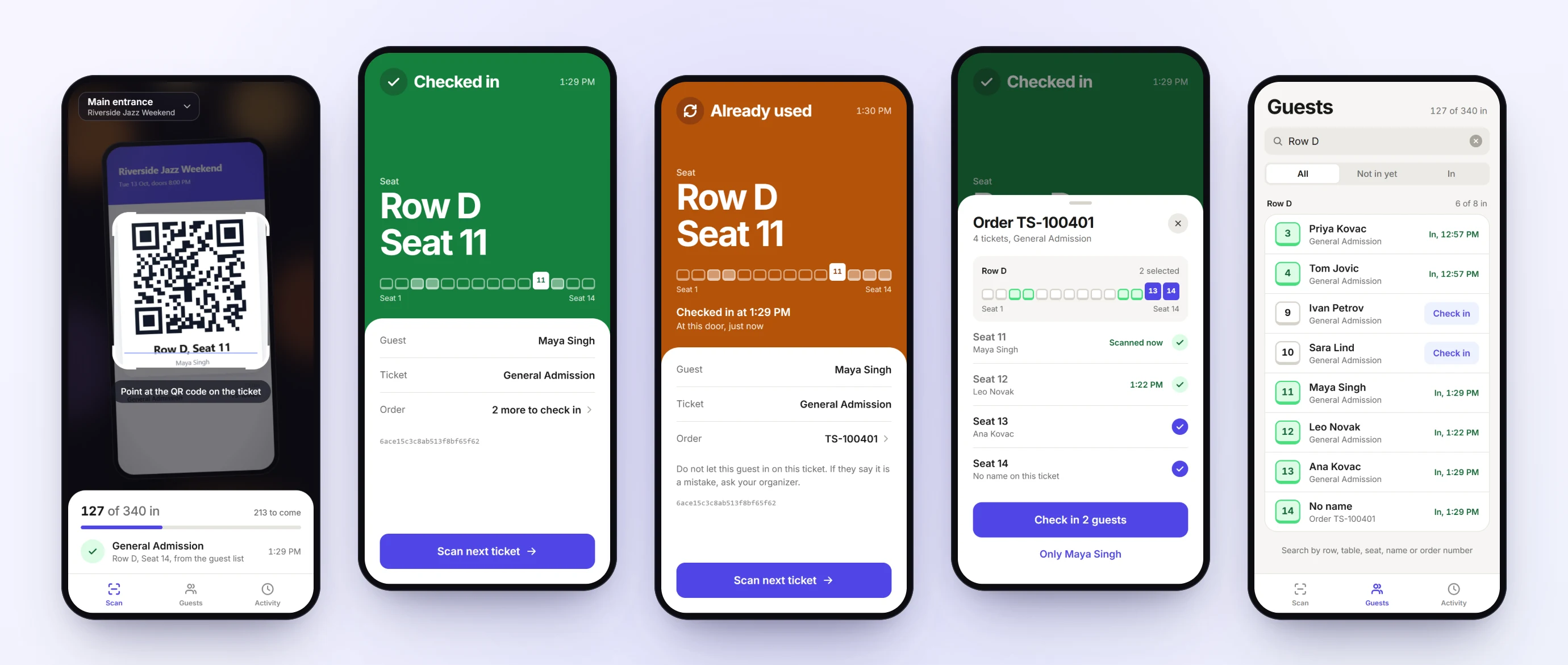
A valid ticket shows a green "Checked in" result along with the seat. For reserved seating events, this is more useful than it sounds. Staff can say "Row F, seat 12, that's through the left doors" instead of sending the guest to find an usher. Because buyers choose their exact seat when they book with reserved seating, the seat on screen is the seat the guest picked.
"Already used"
If a ticket was scanned before, the scanner shows "Already used". This does not always mean fraud. Common honest causes include:
- One partner forwarded the ticket email to the other, and both tried to scan the same code.
- A guest went out to the car and is coming back in.
- A guest bought tickets for friends and sent everyone the same screenshot.
Give staff a short script so they stay calm and consistent:
- "That ticket has already been scanned tonight. What name is the booking under?"
- Check the name and order on the scanner.
- If it is a re-entry or a mix-up within one order, let them through or call a supervisor, depending on your policy.
- If nobody can explain it, send them to the supervisor rather than arguing in the queue.
Using the Activity tab when a guest disputes a result
The scanner's Activity tab shows the recent scans on that phone. If a guest insists they have not been in yet, staff can check whether the code was scanned on that phone a few minutes earlier, which often settles the matter quickly.
Duplicate detection matters because screenshots and resold tickets are the most common ways people try to share one ticket. For a wider look at the problem, read the guide on how to prevent ticket fraud and scalping at your events.
When the QR code won't scan: using the guest list
Every event has a few guests whose code simply will not scan. The usual reasons:
- The phone has died.
- The screen is cracked across the QR code.
- The ticket email was deleted or is buried in a spam folder.
- A home printout is too faint or creased.
- The phone's screen brightness is turned right down.
Before reaching for the guest list, ask the guest to turn their brightness up and hold the phone steady. That fixes more problems than you would expect.
If it still fails, switch to the guest list. In Ticketseat, staff open the Guests tab, search for the guest by name and check them in from there.
A simple rule for staff
Before searching, ask two things:
- "What name was the booking made under?"
- "Which email address did you use?"
The name finds the order. The email address confirms it belongs to the person standing there. If someone cannot answer either question, send them to a supervisor. This keeps the guest list from becoming an easy way in for people without tickets.
Checking in couples, families and groups together
A family of five arriving together should not have to hand over five phones, or wait while one parent scrolls through five separate emails.
In Ticketseat, staff can scan any one ticket from the order, open the whole order and check in the group together. One scan, one tap, and the family is through.
When to scan tickets one by one
Group check-in is quick, but it is not always right. Scan tickets individually when:
- The group is arriving separately, for example one person now and the rest after work.
- Only part of the group is at the door.
- The booking was made by someone who is not attending.
If you check in a whole order and half the group turns up an hour later, their tickets will show as already used. Train staff to ask "Is everyone here?" before checking in a group.
Keeping control of who can scan your tickets
Anyone holding a working scanner can check people in, so treat door links like keys to the building.
See every device
In Ticketseat, the organiser sees every device signed in to a door link. Before doors open, have a quick look. If you expected three volunteers on the main door and see five devices, you will want to know why.
Sign out a single phone
If a volunteer leaves early or a phone goes missing, sign out that one device. Everyone else on the same door keeps scanning without interruption.
Reset a link that has spread too far
Sometimes a door link ends up in a group chat it should never have reached. Resetting the link stops the old one from working. Send the new link only to the people on shift.
Links that expire on their own
A door link stops working 7 days after the event's last date. That means you do not need to remember to tidy up old links from last season's shows. They close themselves.
Pre-show scanner checklist
Run through this list before every event, and earlier for your first one.
The day before
- Create one scanner per entrance and name each clearly.
- Send each door link to the staff working that door, and only to them.
- Ask every staff member to open the link on their phone and allow camera access.
An hour before doors
- Have each person scan a test ticket. Book a test ticket or issue a complimentary one, so you can see a real "Checked in" result. Scan it a second time to see "Already used" too.
- Check the devices signed in to each door link and remove any you do not recognise.
- Turn screen brightness up on every scanning phone.
- Check batteries are charged, and keep at least one power bank at the door.
- Test the venue's mobile signal or Wi-Fi at the exact spot staff will stand. Foyers in old buildings can be dead zones.
The staff briefing
- What a green "Checked in" looks like, and how to direct guests to their seat.
- What to say when a ticket shows "Already used", and when to call a supervisor.
- How to search the Guests tab, and the two questions to ask first.
- How to check in a group, and the "Is everyone here?" question.
- Who to tell if a phone is lost or a link has been shared.
For queue layout, staffing levels and other ways to speed up entry, see the guide to event check-in best practices.
How Ticketseat helps
Ticketseat includes a door scanner built for small teams. You add a scanner by typing a name, and Ticketseat creates a door link and a QR code for it. Door staff open the link on their own phone and scan in the browser with no username and no password.
Each scan shows a clear result: a green "Checked in" with the seat, or "Already used" for a ticket scanned before. Staff can search the guest list when a QR code will not scan, see recent scans in the Activity tab, and check in a whole order together. You can see every signed-in device, sign one out or reset a link, and every door link stops working 7 days after the event's last date. Ticketseat is free to start.
Set up your first event and door scanner free at ticketseat.io.
Frequently asked questions
Can I scan event tickets with my phone?
Yes. A phone camera can read the QR code on a ticket, and a scanner app or browser-based scanner checks it against your ticket list. The scanner confirms the ticket is valid and marks it as used. Most modern smartphones work well, as long as the screen is bright and the battery is charged.
Do door staff need to download an app to scan tickets?
Not always. Some scanners run in the phone's web browser, so staff open a link and start scanning. With Ticketseat, door staff open a door link on their own phone and scan in the browser with no username and no password. This suits volunteers and casual staff who do not want to install anything.
What happens if someone tries to use the same ticket twice?
A good scanner will flag it. In Ticketseat, a ticket that was scanned before shows an "Already used" result. Staff should stay calm, ask the guest for the name on the booking and check the order, because the cause is often a forwarded email rather than fraud.
How do I check in a guest who can't show their QR code?
Ask for the name the booking was made under, then search the guest list. In Ticketseat, staff use the Guests tab on the scanner to find the guest by name and check them in. Ask for something that confirms the booking, such as the email address used, before letting them through.
Can several phones scan tickets for the same event at once?
Yes. Many organisers run one scanner per entrance, such as Main door and Side door. In Ticketseat you add a scanner by typing a name, and you can see every device signed in to each door link. You can sign out a single device or reset the link at any time.
Ticketseat Team
Sharing insights about event ticketing, platform updates, and industry best practices.
Related Articles
View all
Mobile Tickets for Events: How QR Code E-Tickets Work
A plain-English walk through the life of a mobile ticket: from checkout and email to the QR code, the PDF backup and the scan at the door, with fixes for lost emails, flat batteries and shared screenshots.
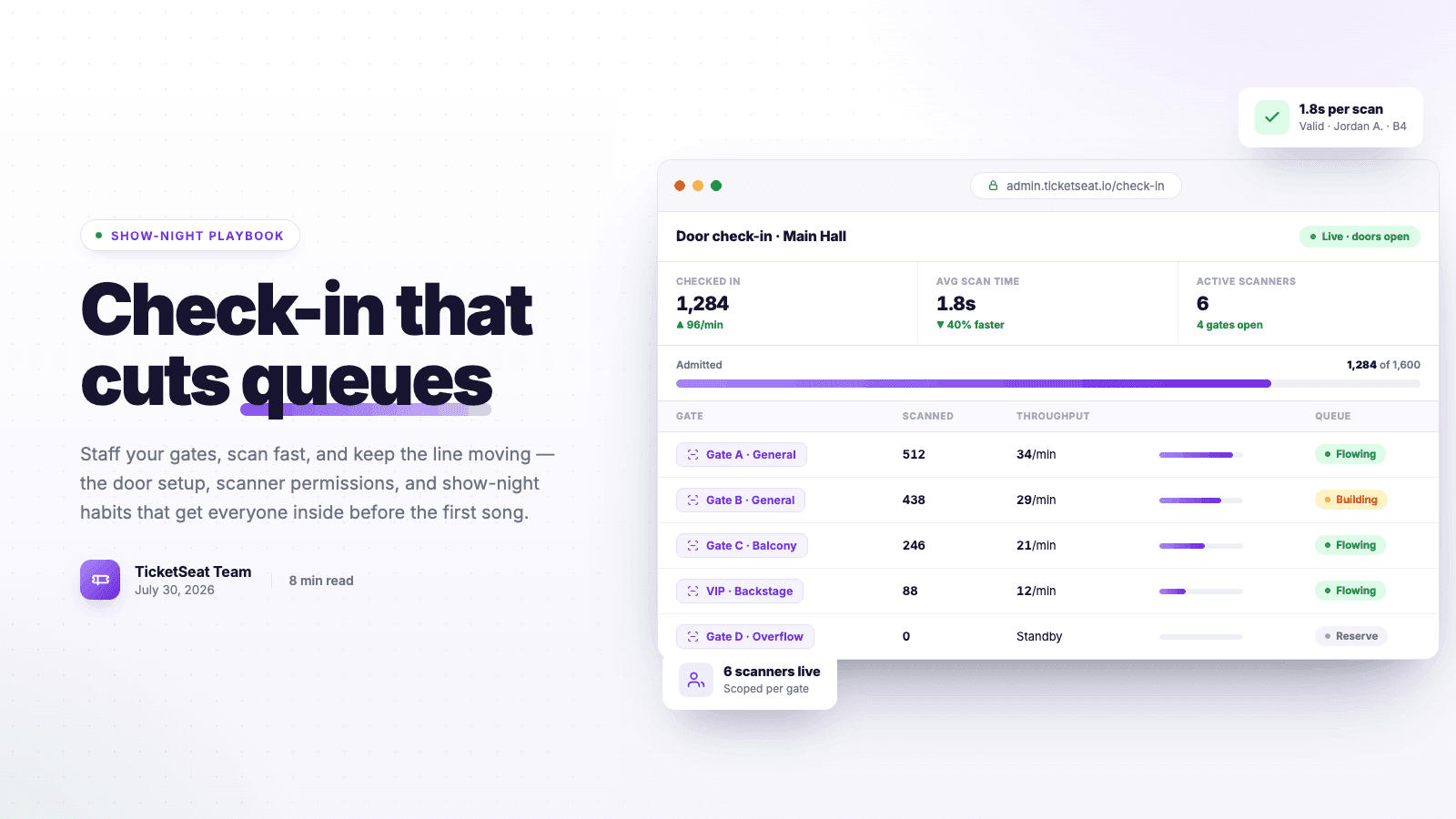
Event Check-In Best Practices: Cut Queues on Show Night
Master your event check-in process to eliminate long queues and elevate the attendee experience. Learn top strategies for entry management, empowering door staff, and boosting your check-in speed.
How to Email Event Attendees: Updates, Reminders and Templates
A practical guide to the emails you send after the sale: event day information, messages to specific ticket types, and change or cancellation notices, with copy-ready templates and a pre-send checklist.
Compare Ticketseat
See how Ticketseat stacks up against other ticketing platforms.
Ready to Transform Your Event Ticketing?
Create your event page, sell tickets with seat maps, and scan guests in at the door. Free to start.